Layouts - Edit
- Back to layouts overview page
- Block library: You can drag and drop blocks in the layout structure from this library
- Container library: You can drag and drop containers in the layout structure from this library
- Collection library: You can drag and drop collections in the layout structure from this library
- Container/Blocks settings: disabled by default: Opened by settings actions in the layout structure
- Collection element: These contain the sub-layout configured in the collection
- Main element: container that contains the content for the page
- Section element: container element to divide the different sections in a layout
- Container element: container element to define the structure of the layout in a section
- You can insert containers before/after with the + icon
- You can edit the settings of the container with the settings icon
- You can remove the container and the content with the trash bin icon
- Block: the block element inside the container
- You can edit the settings of the block with the settings icon
- You can remove the block with the trash bin icon
- You can add block by clicking on this icon, or drag them inside the grey container where the blocks are displayed.
- Publish changes: If you made changes, the button color will change to green when changes are available. You can save these changes to the yaml file by clicking the green button, when the save procedure is completed the button color will change to it's default grey state.
Screenshot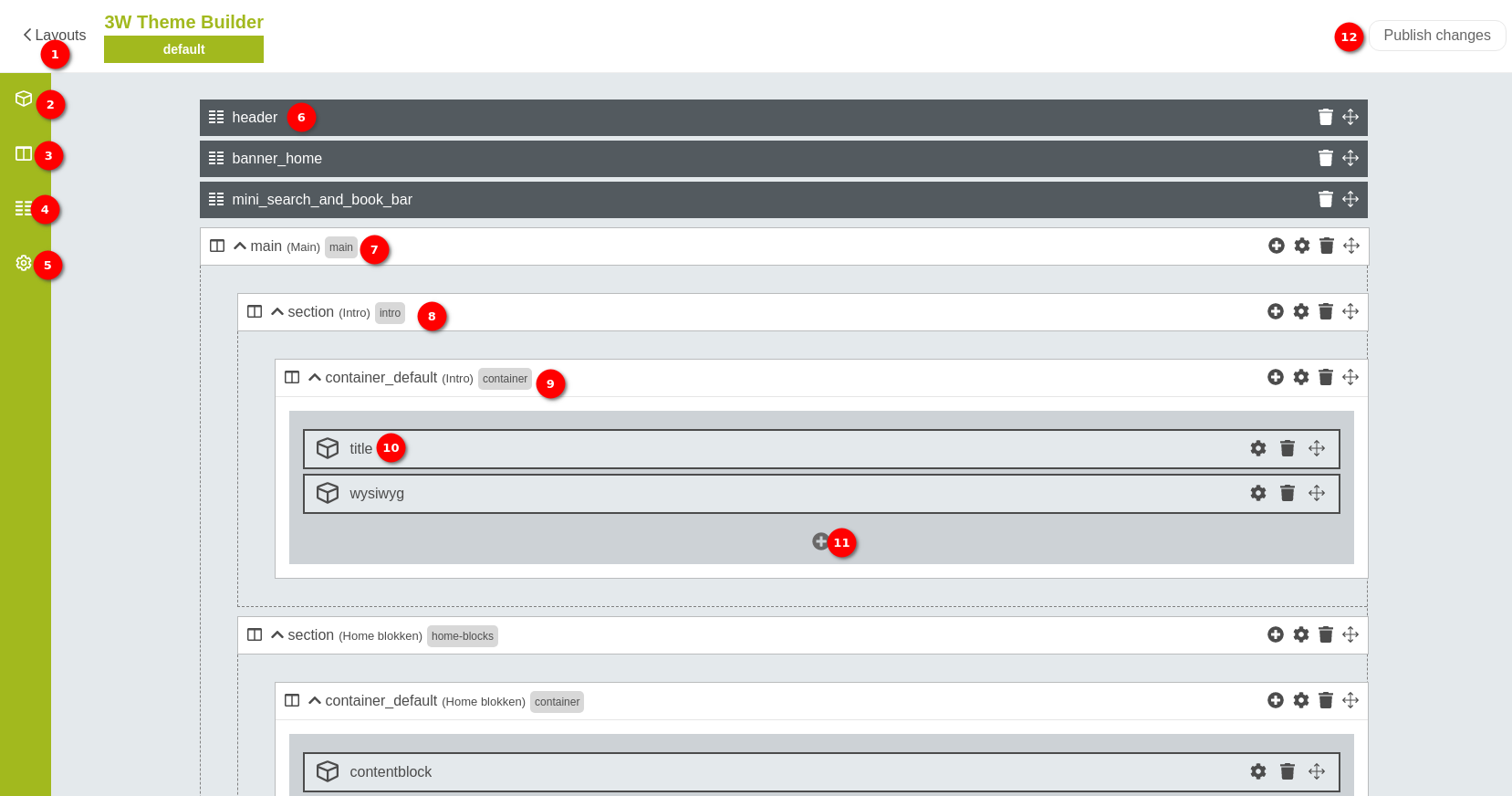
- Publish changes: If you made changes, the button color will change to green when changes are available. You can save these changes to the yaml file by clicking the green button, when the save procedure is completed the button color will change to it's default grey state.